
1. Enable / Disable Team Post Type

  • Location: Coreit -- Theme option -- CoreIT Cutom Post Type Settin

  • Option: Enable / Disable Team Post Type

  • Description: This checkbox allows you to enable or disable the Team post type. When disabled, the Team post type and related settings will not be available.

  • Default Value: Enabled (true)


  • 2. Team Post Name

    • Option: Team Post Name

    • Description: Set the name of the Team post type. This name will be used in the admin menu and other areas where the Team post type is referenced.

    • Default Value: Our Team


    3. Team Post URL Name (Slug)

    • Option: Team Post Url Name

    • Description: Customize the URL slug for Team posts. This is the part of the URL that comes after your domain name (e.g., yoursite.com/Team-slug).

    • Default Value: Empty (uses default slug)


    4. Team Post Category URL Name (Slug)

    • Option: Team Post Category Url Name

    • Description: Customize the URL slug for Team categories. This is the part of the URL that comes after your domain name (e.g., yoursite.com/Team-category-slug).

    • Default Value: Empty (uses default slug)


1. How to add Team post

  1. On your WordPress Dashboard
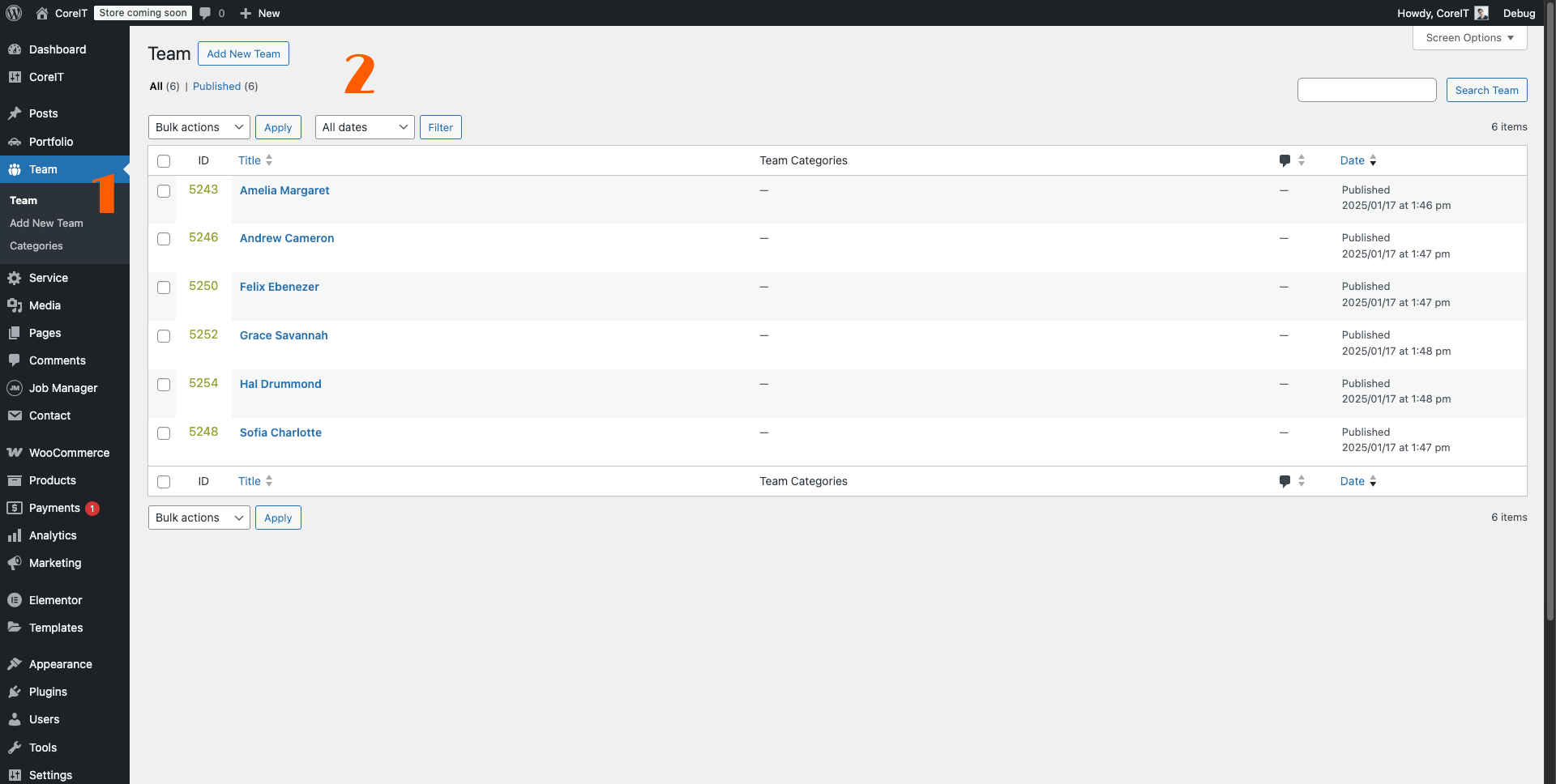
  2. Navigate to "Team" in the left sidebar menu

Adding a New Team Member

  1. Click the "Add New Team" button at the top of the Team page
  2. This will open a new team member entry form

Filling Out the Team Member Details

  • Add Title: Enter the team member's name in the title field
  • Team Content:
    • Enter the team member's bio or description in the content field
    • Use the text editor to format content as needed

Social Media Links

You can add up to 5 social media profiles:

  • Facebook
  • Twitter
  • Instagram
  • YouTube
  • WhatsApp

For each social media platform:

  1. Select the appropriate icon from the dropdown menu
  2. Enter the complete profile URL in the "Link" field
  3. Use the "Remove Social Media" button to delete unused fields

Additional Settings

  • Set Featured Image: Click "Set featured image" to add a photo
  • Add Excerpt: Click "Add an excerpt" to include a brief description
  • Categories: Click "Add New Category" to create and assign categories

Publishing

  1. Choose publishing options:
    • Status: Set as Draft or Published
    • Visibility: Select public or private
    • Publishing time: Choose immediate or scheduled
  2. Click the "Publish" button to make the team member profile live

The team member will then appear in your team listing with their ID, name, categories, and publishing date displayed.


ig
ig
ig

1. Team Archive Settings

On your Wordpress Dashboard - Go to Coreit -- theme options -- CoreIt Team Settings

1.1. Select Archive Page

  • Location: CoreIT Team Settings > Select Archive Page Settings

  • Option: Page

  • Description: Choose the page that will serve as the archive page for your Team posts. This page will display all your Team items.

  • Default Value: None (must be selected manually)


1.2. Archive Page Settings

1.2.1. Post Count

  • Location: CoreIT Team Settings > Archive Page Settings

  • Option: Post Count

  • Description: Set the number of Team posts to display per page.

  • Default Value: 15

1.2.2. Post Order By

  • Location: CoreIT Team Settings > Archive Page Settings

  • Option: Post Order

  • Description: Choose how Team posts are ordered (e.g., by date, title, menu order, or randomly).

  • Default Value: Date

  • Options:

    • Date

    • Title

    • Menu Order

    • Random

1.2.3. Post Order

  • Location: CoreIT Team Settings > Archive Page Settings

  • Option: Post Order

  • Description: Choose the order of Team posts (ascending or descending).

  • Default Value: DESC

  • Options:

    • DESC (Descending)

    • ASC (Ascending)

1.2.4. Sort By Category

  • Location: CoreIT Team Settings > Archive Page Settings

  • Option: Sort By Category

  • Description: Filter Team posts by category. Only posts from the selected category will be displayed.

  • Default Value: None (all categories)

1.2.5. Post Exclude

  • Location: CoreIT Team Settings > Archive Page Settings

  • Option: Post Exclude

  • Description: Enter the IDs of Team posts you want to exclude from the archive page. Separate IDs with commas.

  • Default Value: Empty

1.2.5. Post Include

  • Location: CoreIT Team Settings > Archive Page Settings

  • Option: Post Include

  • Description: Enter the IDs of Team posts you want to include on the archive page. Separate IDs with commas.

  • Default Value: Empty

1.2.6. Pagination Alignment

  • Location: CoreIT Team Settings > Archive Page Settings

  • Option: Alignment

  • Description: Choose the alignment of the pagination buttons (left, center, or right).

  • Default Value: Center

  • Options:

    • Left

    • Center

    • Right

1.2.7. Load More Button Text

  • Location: CoreIT Team Settings > Archive Page Settings

  • Option: Load More Button Text

  • Description: Set the text for the "Load More" button.

  • Default Value: Load More

1.2.8. Column Layout

  • Location: CoreIT Team Settings > Archive Page Settings

  • Option: Column

  • Description: Choose the number of columns for displaying Team items.

  • Default Value: 2 Column

  • Options:

    • 1 Column

    • 2 Columns

    • 3 Columns

    • 4 Columns

1.2.9. Card Style

  • Location: CoreIT Team Settings > Archive Page Settings

  • Option: Card Style

  • Description: Choose the style of the Team cards.

  • Default Value: Style 1

  • Options:

    • Style 1

    • Style 2

    • Style 3

1.2.10. Crop Image Dimensions

  • Location: CoreIT Team Settings > Archive Page Settings

  • Option: Crop Image-Width and Crop Image-Height

  • Description: Set the width and height for cropping Team images.

  • Default Values:

    • Width: 300

    • Height: 300

1.2.11. Image Fit Enable / Disable

  • Location: CoreIT Team Settings > Archive Page Settings

  • Option: Image Fit Enable / Disable

  • Description: Enable or disable image fit for Team images.

  • Default Value: Disabled (false)

1.2.12. Image Fit Height

  • Location: CoreIT Team Settings > Archive Page Settings

  • Option: Image Fit Height

  • Description: Set the height for image fit.

  • Default Value: 350

1.2.13. Category Enable / Disable

  • Location: CoreIT Team Settings > Archive Page Settings

  • Option: Category Enable / Disable

  • Description: Enable or disable the display of categories on Team cards.

  • Default Value: Enabled (true)

1.2.14. Excerpt Enable / Disable

  • Location: CoreIT Team Settings > Archive Page Settings

  • Option: Excerpt Enable / Disable

  • Description: Enable or disable the display of excerpts on Team cards.

  • Default Value: Disabled (false)

1.2.15. Excerpt Count

  • Location: CoreIT Team Settings > Archive Page Settings

  • Option: Excerpt Count

  • Description: Set the number of characters to display in the excerpt.

  • Default Value: 15

1. Single Team page settings

On your Wordpress Dashboard - Go to Coreit -- theme options -- CoreIt Team Settings

1.1. Share Enable / Disable

  • Location: CoreIT Team Settings > Single Page Settings

  • Option: Share Enable / Disable

  • Description: Enable or disable social sharing buttons on single Team pages.

  • Default Value: Enabled (true)

1.2. Next - Previous Post Enable / Disable

  • Location: CoreIT Team Settings > Single Page Settings

  • Option: Next - Prev Post Enable / Disable

  • Description: Enable or disable the display of next and previous post navigation on single Team pages.

  • Default Value: Enabled (true)

1.3. Related Post Enable / Disable

  • Location: CoreIT Team Settings > Single Page Settings

  • Option: Related Post Enable / Disable

  • Description: Enable or disable the display of related posts on single Team pages.

  • Default Value: Enabled (true)

1.4. Related Post Title

  • Location: CoreIT Team Settings > Single Page Settings

  • Option: Related Post Title

  • Description: Set the title for the related posts section.

  • Default Value: Related Post